
.jpg)
how to add subscribe and save to your Shopify store | Reading Time: 45-60 minutes | Difficulty: Beginner
What You'll Learn: How to Add Subscribe and Save to Your Shopify Store in 2026
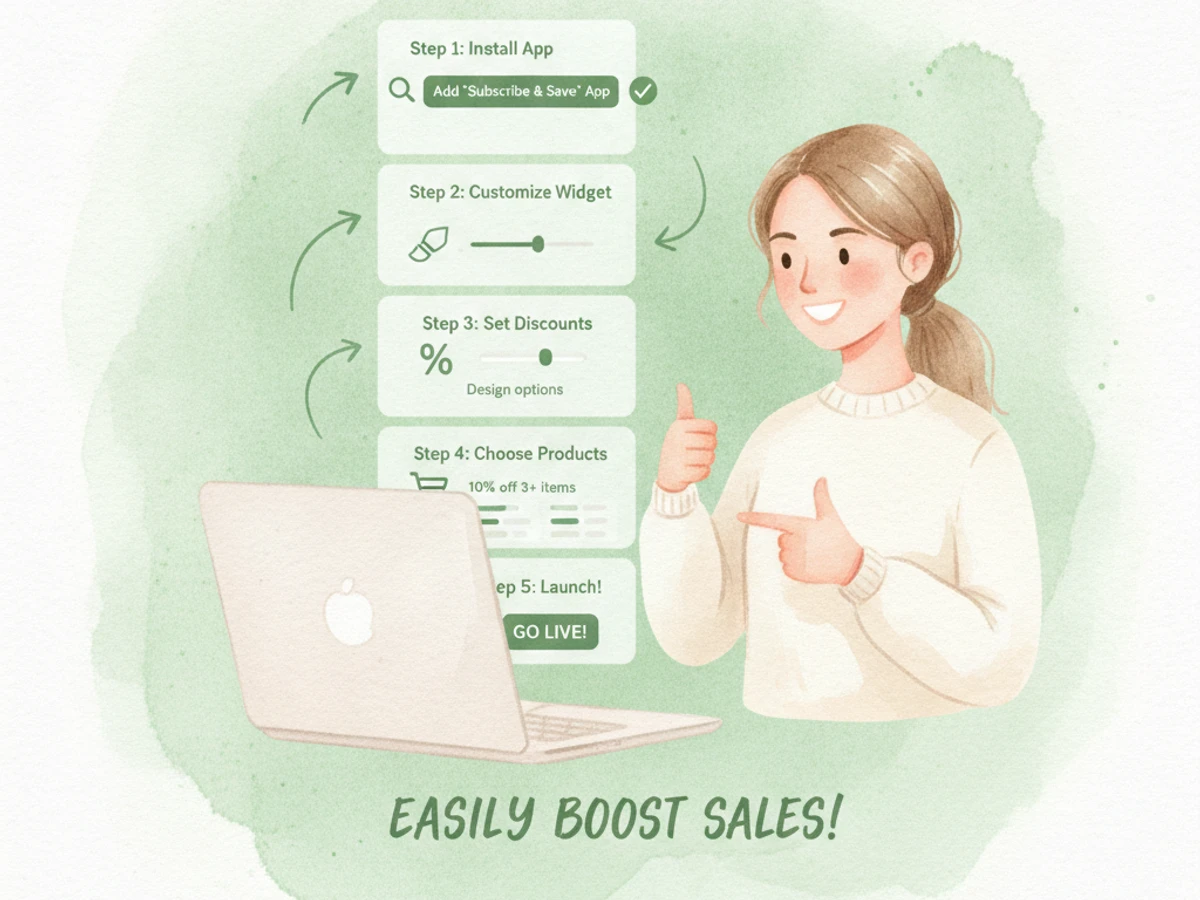
By the end of this 45-60 minute guide, you'll have a live subscribe-and-save option running on your product pages without touching a single line of code. We'll walk you through implementing a recurring revenue model using a native subscription app like Recurpay, straight from app installation to your first test order. No developer needed—just clear steps and a few clicks.
- Understand the subscribe-and-save model: Learn its mechanics and why the 10-15% discount range actually works for conversions.
- Install and connect a Shopify subscription app: Get a dedicated app like Recurpay up and running in under 10 minutes.
- Configure subscription plans: Set up billing frequency, delivery cadence, and discount rules tailored to your products.
- Enable the subscription widget: Make the subscribe-and-save option visible and clickable on your product pages.
- Test and launch: Verify the entire checkout flow works before opening it up to real customers.
Prerequisites: An active Shopify store on a plan that supports apps, a supported payment provider such as Shopify Payments, and at least one product suited to repeat purchases.
Why Subscribe and Save Matters in 2026
Subscribe and save has become the default entry point for Shopify merchants exploring recurring revenue—and the numbers justify the hype. Research from EasySubscription shows that 58% of DTC brands on Shopify now offer subscriptions, feeding into a global subscription commerce market worth $330 billion. That's not just volume; it's real business impact. Subscribers generate 3–5x higher LTV (Lifetime Value) than one-time buyers, according to Atlas Marketing's 2026 subscription commerce analysis. LTV measures the total profit you'll make from a customer over your entire relationship with them—and subscriptions shift that number dramatically upward.
The replenishment model—the technical term for subscribe and save, where customers get regular deliveries of consumables—is also the safest starting point because churn is naturally low. Industry benchmarking data confirms that replenishment models have the lowest churn rates at 5-8%. Add in flexible skip and pause options, and you can reduce churn by another 25-35%. For merchants selling coffee, supplements, pet food, or skincare, subscribe and save isn't a nice-to-have anymore—it's what customers expect.
Get the discount right, and you're golden. Pricing research consistently points to the 10–15% discount range as the conversion sweet spot, a finding reinforced by AddWeb Solution's 2026 commerce trends report. This range is now the established baseline for a reason—it converts without destroying margins. When you nail the discount and setup, subscribe and save becomes one of the highest-leverage additions you can make to your store this year.
Key Takeaway: Subscribe and save delivers 3-5x higher LTV, low churn, and proven conversion rates when you use a 10-15% discount paired with customer flexibility controls. For supporting data, see Top 8 Subscription Apps for Shopify Stores in 2026 - Joy Loyalty.
The Process at a Glance
| Step | Action | Time | Outcome |
|---|---|---|---|
| 1 | Choose your subscribe-and-save discount strategy | 10 min | Discount rate and cadence options defined |
| 2 | Install a Shopify subscription app | 5-10 min | App connected and permissions granted |
| 3 | Create your subscription plan | 10-15 min | Billing, delivery, and discount rules saved |
| 4 | Enable the widget on product pages | 5-10 min | Subscribe-and-save option visible to shoppers |
| 5 | Test checkout and launch | 10-15 min | Verified live subscription flow ready for customers |
Total time: roughly 45-60 minutes from a blank store to a live subscribe-and-save offer.
Step 1: Choose Your Subscribe and Save Discount Strategy
What You're Doing
Before you touch the app, you need clarity on your offer. This step locks in your discount percentage, billing frequency, and which products qualify—everything that will guide your app setup.
How to Do It
- Shortlist products with predictable repeat purchase cycles. Consumables like coffee, supplements, pet food, or skincare are the obvious wins.
- Set your discount between 10% and 15%. Multiple 2026 pricing studies confirm this range converts without eroding your margin.
- Decide on 2-3 delivery frequency options (like monthly, every 6 weeks, every 8 weeks) instead of locking customers into one interval. Flexibility matters.
- Write down your target margin per subscription order. Sanity-check the discount against your cost of goods so you're not leaving money on the table.
Best Practices
Offering multiple frequency choices is a retention lever you shouldn't ignore. AddWeb Solution's data found that merchants providing 3-4 frequency options have a 23% lower voluntary churn rate compared to a single fixed interval. Keep your pricing simple though—cap your plans at three tiers so customers don't freeze at checkout.
Example
| Product | Discount | Frequency Options |
|---|---|---|
| Coffee bags | 12% | Every 2, 4, or 6 weeks |
| Supplement capsules | 15% | Every 30 or 60 days |
| Skincare serum | 10% | Every 45 or 90 days |
What Done Looks Like
You have a clearly defined discount rate, a menu of 2-3 frequency options, and a specific product list—all ready to plug into your app without second-guessing yourself. For a more detailed walkthrough, see How to Set Up Subscribe and Save on Shopify (2026 Guide). For related guidance, see Best Shopify Subscription App For Coffee Brands In 2026 38e9a.
Step 2: Install a Shopify Subscription App
What You're Doing
Shopify's native checkout doesn't include a built-in subscribe-and-save widget, so you need a dedicated tool. This step gets a subscription app installed and connected to your store so it can create selling plans, manage recurring orders, and display subscription options on your product pages.
How to Do It
- Head to the Recurpay Subscriptions listing on the Shopify App Store and click Install.
- Approve the permissions request. The app needs access to your products, orders, and customers to create and manage subscription orders correctly.
- Once installed, you'll land in the app dashboard where onboarding prompts guide you through selecting your industry and activating the widget.
- Confirm your store uses a supported payment provider, like Shopify Payments, before creating any plans. Shopify only supports subscriptions with specific gateways, and this is a hard requirement.
Best Practices
Recurpay is built to make subscription revenue accessible without technical barriers. Always check the app's supported payment gateway list before configuring plans—this saves you from redoing your setup later.
Common Mistakes
Skipping the permissions review: Approving installation without confirming the app has necessary order and customer access will block plan creation. Ignoring payment gateway compatibility: If your store uses an unsupported gateway, subscriptions won't process at checkout.
What Done Looks Like
The subscription app appears in your Shopify admin's app list, its dashboard is active, and you've verified that your payment provider supports recurring billing.
Join 7,500+ brands using Recurpay
Recurpay is the answer to your customer retention game in the emerging era of subscriptions.
Get StartedStep 3: Create Your Subscription Plan (Billing, Delivery, and Discount Settings)
What You're Doing
Now you take the discount strategy from Step 1 and turn it into a working selling plan—a set of rules that defines how a product can be purchased on a recurring basis, including billing, delivery, and discount settings—and link it to specific products.
How to Do It
- In your subscription app's dashboard, click Add plan to start creating a new subscribe-and-save offer.
- Set the delivery interval (weekly, monthly, or custom) and make sure the billing interval matches so charges align with fulfillment.
- Enter your discount percentage—the 10-15% range you chose in Step 1.
- Assign the specific products this plan applies to, configure Delivery and Billing options, and finalize all Plan details. Click "Save Plan" to lock it in.
Example
A typical monthly selling plan might be named "Monthly Subscription" with a merchant code "subscribe-and-save," featuring a monthly billing interval and a percentage-based pricing adjustment automatically applied at checkout—reflecting the underlying Shopify selling plan structure.
What Done Looks Like
Your new plan appears in the app dashboard with the correct discount, frequency, and assigned products, marked as active or saved.
Step 4: Enable the Subscribe and Save Widget on Product Pages
What You're Doing
Time to make your plan visible. This step activates the subscription widget in your Shopify theme, so your subscribe-and-save offer shows up on product pages where customers actually see it.
How to Do It
- From your app dashboard, click Enable widget—this redirects you into your Shopify theme editor.
- In the theme editor's left panel, toggle the necessary buttons ON, then click "Save" to activate the app's widget.
- Open a product page assigned to your subscription plan and confirm the subscribe-and-save option now appears alongside the one-time purchase option.
- If the widget doesn't show, check your theme's app embed settings—some themes require app blocks to be manually placed.
Best Practices
Use specific label text like "Subscribe & Save 12%" instead of generic wording—specificity drives clicks at this critical funnel point. Match the widget's styling to your brand aesthetic rather than using default colors, since a mismatched widget looks unprofessional and can tank conversion rates.
What Done Looks Like
Any customer visiting an enrolled product page now clearly sees both a one-time purchase option and a subscribe-and-save option, with the discount prominently displayed.
Step 5: Test Checkout and Launch
What You're Doing
Before you tell the world about your new subscription offer, you need to walk through the entire customer journey yourself. This step catches any hidden issues before they hit real customers.
How to Do It
- Test your first subscription flow: add a product to your cart, proceed through checkout, and confirm every detail looks right.
- Verify the discount is applied correctly at checkout and that billing and delivery dates match your configuration from Step 3.
- Log into the customer portal as a test subscriber and confirm that skip, pause, and reschedule options work as expected.
- Once everything checks out, launch your offer via email, on-site banners, or checkout messaging to drive initial sign-ups.
Common Mistakes
Launching without a test order: Untested plans can fail silently at checkout if the payment gateway or theme integration isn't fully configured. Forgetting to test the customer portal: Subscribers unable to self-serve skip or pause requests will flood your support inbox, defeating the entire purpose of subscriptions.
What Done Looks Like
You've successfully placed and canceled a real test subscription order, confirming the offer is fully visible and functional for live customers.
What to Do After Adding Subscribe and Save
Phase 1 — Monitor early signals (Weeks 1-4): Track the subscribe-and-save conversion rate on enrolled product pages and watch for failed payment notifications in your app dashboard.
Phase 2 — Optimize retention (Months 2-3): Implement churn-prevention flows like expiring-card reminders. A simple email saying "Your card on file is expiring soon—please update it to avoid interruption" can save a surprising number of subscriptions. Analyze skip and pause data to see if offering additional frequency options could reduce cancellations further.
Phase 3 — Scale the program (Months 3-6): Expand subscribe-and-save to a broader product range, introduce milestone rewards for loyal subscribers, and test bundling or tiered discounts to increase average subscription order value.
Resources You'll Need
| Resource | Role | Requirement | Price |
|---|---|---|---|
| Recurpay | Subscription app for plan creation, billing, and customer portal | Required | $9/month (5/5 rating) |
| Shopify | Core ecommerce platform hosting your store and checkout | Required | Varies by plan |
| Shopify Payments | Supported gateway for processing recurring charges | Required | Transaction fees only |
| Klaviyo | Email/SMS flows for dunning (methodically contacting customers to collect overdue payments) and win-back sequences | Recommended | Free tier available |
| Shopify Help Center | Reference for subscription and payment gateway requirements | Optional | Free |
See also, see Shopify Subscriptions Tutorial for Beginners | 2026 Step by ....
Troubleshooting Common Issues
Widget not showing on product pages
Likely cause: The app embed wasn't toggled on in the theme editor, or the product wasn't assigned to a subscription plan. Fix: Return to the app's "Enable widget" flow, confirm the toggle is ON, and double-check that the product is listed under the plan's assigned products.
Subscriptions failing at checkout
Likely cause: Your store is using a payment gateway that doesn't support Shopify's subscription APIs. Fix: Switch to a supported provider like Shopify Payments before creating any new plans.
High involuntary churn from failed payments
Likely cause: A single retry attempt on expired or declined cards. Research indicates that failed payments cause 20-35% of involuntary churn among subscription businesses. Fix: Enable smart retry logic and implement expiring-card email reminders so customers update payment details before a charge fails.
Low subscribe-and-save conversion rate
Likely cause: The discount or savings message isn't sufficiently visible on the product page. Fix: Display a clear savings calculation—showing customers exactly how much they'll save can increase subscription conversion rates by 11-14%.
Conclusion
Adding subscribe and save to a Shopify store in 2026 is a same-day project when you use a purpose-built subscription app, establish a clear discount and frequency strategy, and thoroughly test the entire flow before launch. This aligns with Recurpay's mission: get your Shopify store subscription-ready in minutes with a simple yet powerful platform. You get seamless integration, easy migration, partner opportunities, and robust analytics to track growth—all designed to scale recurring revenue without unnecessary complexity or hidden fees.
Key Takeaways
- Optimal subscribe and save setup: Works best with a 10-15% discount and 2-3 frequency options, ideally matched to consumable products with predictable repurchase cycles.
- Retention is key: Tools like skip, pause, reschedule, and dunning emails are as crucial as the initial discount for maintaining long-term subscriber activity.
- Immediate next steps: Install a subscription app, create your first plan, and place a test order before making the offer available to customers.
FAQ
How do I add Subscribe and Save to my Shopify store in 2026?
Install a dedicated Shopify subscription app like Recurpay and connect it to your store. Create a subscription plan, defining your chosen discount (typically 10-15%) and delivery frequency for specific products. Enable the subscribe-and-save widget in your theme editor and conduct a full checkout test before launching to customers. The entire process typically takes 45-60 minutes for your first product.
What discount should I offer for subscribe and save?
Most 2026 pricing research indicates that the optimal subscribe & save discount is 10–15%. This range effectively converts customers into subscribers without significantly eroding your profit margins.
Do I need a developer to add subscribe and save to Shopify?
No. Modern subscription apps are specifically designed for no-code setup, allowing store owners to configure billing, delivery, and discounts directly through the app dashboard and theme editor toggles without writing any code.
Which payment providers support Shopify subscriptions?
Shopify subscriptions require a supported payment gateway like Shopify Payments. Always confirm that your store's current payment provider is on Shopify's supported list before creating any subscription plans.
How much does Recurpay cost for Shopify subscribe and save?
Recurpay is priced at $9/month and holds a 5/5 rating. It's positioned as an accessible, fast solution for Shopify merchants to launch subscriptions without technical barriers or steep costs.
Why do customers cancel subscribe-and-save subscriptions?
The two primary reasons are failed payments, which cause 20-35% of involuntary churn among subscription businesses, and lack of flexibility. Offering options like skip and pause substantially reduces voluntary churn.
What products work best for a subscribe-and-save model?
Consumable products with predictable repurchase cycles work best. Think coffee, supplements, pet food, and skincare—items that naturally fit a "set it and forget it" replenishment pattern.
How long does it take to set up subscribe and save on Shopify?
Following the five-step process—strategy, app installation, plan creation, widget activation, and testing—most merchants complete the setup for their first subscription plan in approximately 45-60 minutes.
This guide is based on publicly available Shopify and subscription app documentation, published 2026 industry research on subscription commerce benchmarks, and standard subscribe-and-save configuration workflows. Specific settings, permissions, and interface labels may vary by app version and Shopify theme; always confirm current steps in your chosen app's official help documentation before launch.